Core Web Vitals: The Complete Guide to LCP, INP, and CLS for Better Rankings and User Experience
Your website might look beautiful, but if it loads slowly, shifts around while users try to read, or freezes when they click a button, Google knows, and it is hurting your rankings. Core Web Vitals are Google’s standardised metrics for measuring real-world user experience on your website. They directly influence search rankings, and in 2026, they are more important than ever.
Yet only 48% of mobile pages pass all three Core Web Vitals thresholds. That means more than half of all websites are delivering a subpar experience and paying for it with lower rankings, higher bounce rates, and lost conversions.
This guide explains what each Core Web Vital measures, why it matters, and exactly how to optimise your website to pass all three thresholds. Whether you manage a corporate site, an e-commerce store, or a content platform, these optimisations will improve both your SEO performance and your user experience simultaneously.
What Are Core Web Vitals?
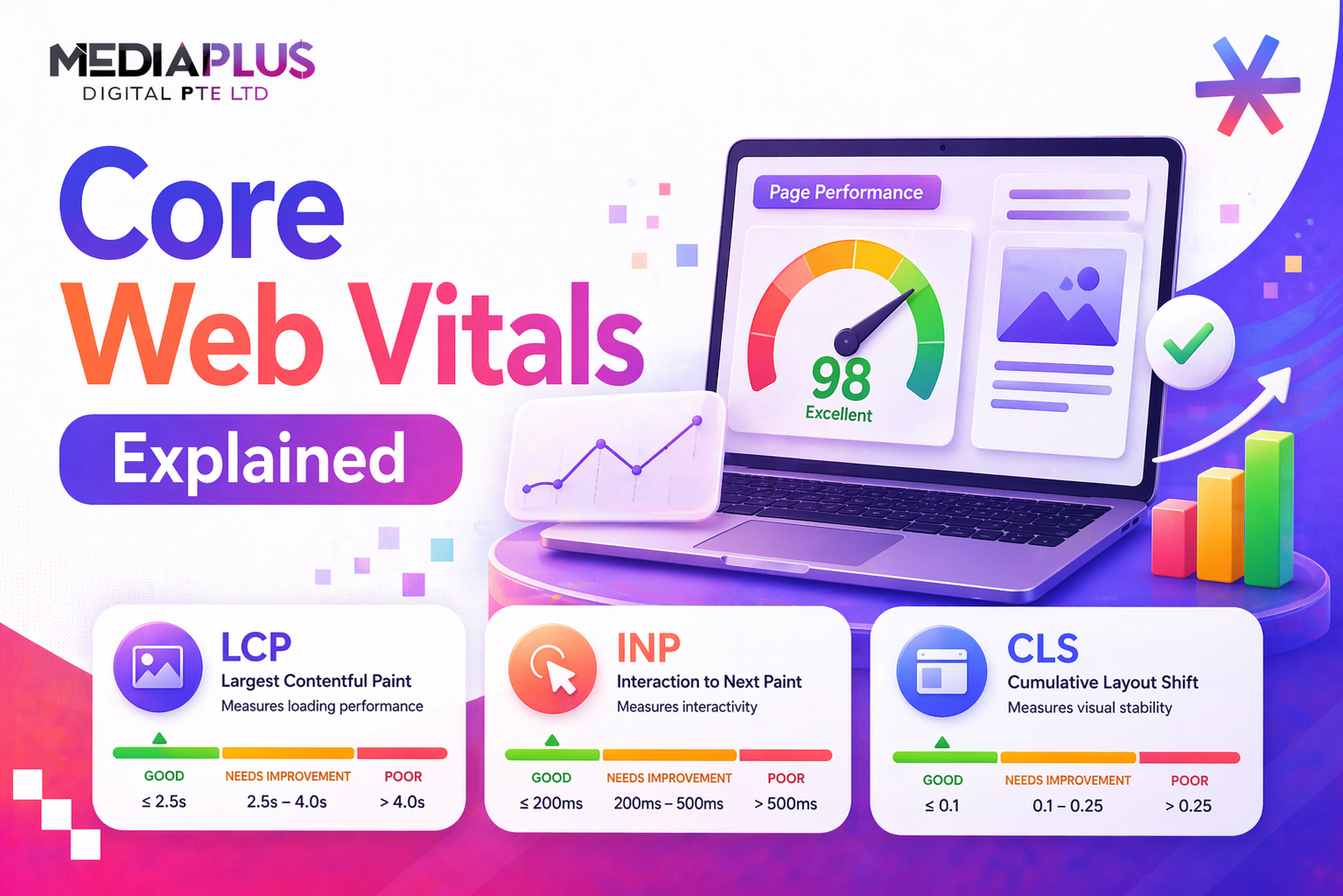
Core Web Vitals are a set of three specific metrics that Google uses to evaluate the real-world user experience of web pages. They measure three dimensions of user experience: loading speed, interactivity, and visual stability.
|
Metric |
What It Measures |
Good Threshold |
Pass Rate (Mobile) |
|
LCP (Largest Contentful Paint) |
Loading speed |
Under 2.5 seconds |
62% |
|
INP (Interaction to Next Paint) |
Responsiveness |
Under 200 milliseconds |
77% |
|
CLS (Cumulative Layout Shift) |
Visual stability |
Under 0.1 |
81% |
Google uses real user data (field data) from the Chrome User Experience Report (CrUX) to evaluate Core Web Vitals for ranking purposes. A perfect Lighthouse score in a lab test does not guarantee passing Core Web Vitals because real users operate on diverse devices, networks, and conditions that synthetic testing cannot replicate.
Sites passing all three Core Web Vitals thresholds see 24% lower bounce rates, measurably better organic rankings, and higher user engagement compared to sites that fail.
LCP (Largest Contentful Paint): Loading Speed
What LCP Measures
LCP measures when the largest visible element in the viewport finishes rendering. This is typically the hero image, a large text block, or a video element. It represents the moment users perceive the page as “loaded” with meaningful content.
- Good: Under 2.5 seconds
- Needs improvement: 2.5 to 4.0 seconds
- Poor: Over 4.0 seconds
LCP is the most commonly failed Core Web Vital. Only 62% of mobile pages achieve a good score, making it the single biggest optimisation opportunity for most websites.
Common LCP Problems
- Large, unoptimised images: Hero images that are 2 to 5MB in PNG or JPEG format when they could be 200KB in WebP.
- Slow server response time (TTFB): If the server takes too long to respond, everything else is delayed. Only 44% of pages achieve good Time to First Byte.
- Render-blocking resources: CSS and JavaScript files that must load before the browser can render the page.
- Late-discovered LCP resource: If the browser does not know about the LCP image until after other resources load, it waits unnecessarily.
How to Optimise LCP
- Preload the LCP image: Add <link rel=”preload”> with fetchpriority=”high” for the largest above-the-fold image. This tells the browser to prioritise this resource immediately.
- Use modern image formats: Convert images to WebP (25 to 34% smaller than JPEG) or AVIF (even better compression). This is the single highest-impact LCP optimisation for most sites.
- Improve server response time: Use a fast hosting provider, implement server-side caching, and consider a CDN to serve content from servers closest to your users.
- Eliminate render-blocking resources: Defer non-critical CSS and JavaScript. Inline critical CSS needed for above-the-fold content.
- Avoid lazy loading the LCP element: Lazy loading is great for below-the-fold images but delays the LCP element if applied to the hero image.
- Optimise web fonts: Use font-display: swap to show text immediately while custom fonts load, preventing invisible text that delays perceived loading.
Fast, reliable web hosting is the foundation of good LCP performance. A slow server undermines every other optimisation.
INP (Interaction to Next Paint): Responsiveness
What INP Measures
INP measures how quickly your page responds to user interactions throughout the entire page lifecycle. It captures every click, tap, and key press, then reports the slowest interaction (or the 98th percentile for pages with many interactions).
- Good: Under 200 milliseconds
- Needs improvement: 200 to 500 milliseconds
- Poor: Over 500 milliseconds
INP replaced First Input Delay (FID) in March 2024. 43% of sites fail the INP threshold, making it the most commonly failed Core Web Vital in 2026. Unlike FID, which only measured the first interaction, INP captures every interaction, making it far harder to optimise but far more representative of actual user experience.
Common INP Problems
- Long JavaScript tasks: JavaScript that blocks the main thread for more than 50ms prevents the browser from responding to user interactions.
- Heavy third-party scripts: Analytics, chat widgets, ad scripts, and social media embeds often execute expensive JavaScript that delays interactions.
- Large DOM size: Pages with thousands of DOM elements require more processing time for each interaction.
- Synchronous data processing: Processing large datasets or making API calls synchronously during user interactions freezes the interface.
How to Optimise INP
- Break long tasks: Split JavaScript tasks longer than 50ms into smaller chunks using requestIdleCallback, setTimeout, or the Scheduler API. This allows the browser to process user interactions between task chunks.
- Defer non-critical JavaScript: Load analytics, chat widgets, and other non-essential scripts after the page becomes interactive. Use async or defer attributes on script tags.
- Yield to the main thread: During complex operations, periodically yield control back to the browser so it can process pending user interactions.
- Reduce DOM complexity: Simplify your page structure. Remove unnecessary wrapper elements, use CSS for layout rather than deeply nested HTML, and virtualise long lists.
- Audit third-party scripts: Profile your page using Chrome DevTools to identify which scripts block the main thread. Remove or defer the worst offenders.
- Use web workers: Move heavy computation off the main thread entirely using Web Workers, which run in a separate thread and do not block user interactions.
CLS (Cumulative Layout Shift): Visual Stability
What CLS Measures
CLS measures how much the page layout shifts unexpectedly during loading. It quantifies the frustrating experience of reaching for a button only to have it jump away as an ad loads above it, or trying to read text that suddenly moves as images render.
- Good: Under 0.1
- Needs improvement: 0.1 to 0.25
- Poor: Over 0.25
CLS is the best-performing metric, with 81% of mobile pages achieving good scores. However, the remaining 19% face significant usability and ranking penalties.
Common CLS Problems
- Images without dimensions: When images load without specified width and height, the browser does not know how much space to reserve, causing content to shift when the image renders.
- Dynamically injected content: Ads, banners, cookie consent bars, and promotional elements that load after the initial page render push existing content around.
- Web fonts causing FOIT/FOUT: Custom fonts that load after initial text render can change text size, line height, or letter spacing, causing layout shifts.
- Late-loading embeds: Third-party embeds (maps, videos, social media) that load with unknown dimensions.
How to Optimise CLS
- Always specify image dimensions: Add width and height attributes to every <img> tag. This allows the browser to reserve the correct space before the image loads.
- Reserve space for ads: Define fixed dimensions for ad containers so content does not shift when ads load.
- Use font-display: swap: Show fallback text immediately while custom fonts load. Match fallback font metrics to your custom font to minimise the swap shift.
- Self-host web fonts: Serve fonts from your own server or CDN to reduce font load time and eliminate dependency on external font services.
- Avoid inserting content above existing content: Never push visible content down the page with late-loading elements. If new content must appear, use fixed-position overlays or append below the viewport.
- Use CSS aspect-ratio: For responsive images and embeds, use the CSS aspect-ratio property to maintain the correct proportions before content loads.
How to Measure Core Web Vitals
|
Tool |
Data Type |
Best For |
|
Google Search Console |
Field (CrUX) |
Site-wide tracking and identifying problem pages |
|
PageSpeed Insights |
Field + Lab |
Quick analysis of individual pages with actionable recommendations |
|
Chrome DevTools |
Lab |
Debugging specific performance issues during development |
|
Lighthouse |
Lab |
Comprehensive performance audits and diagnostics |
|
Web Vitals Extension |
Field (individual) |
Real-time CWV monitoring while browsing your own site |
Important: Google uses field data (real user measurements) for ranking decisions, not lab data. Always check your CrUX scores in Search Console or PageSpeed Insights alongside lab tests. A perfect Lighthouse score does not guarantee good field performance.
Core Web Vitals and SEO: The Direct Connection
- Confirmed ranking factor: Google has confirmed that Core Web Vitals are a ranking signal since 2021. While content relevance remains the primary factor, CWV can be the tiebreaker between similarly relevant pages.
- Mobile-first indexing: Google primarily evaluates the mobile version of your site. Your mobile Core Web Vitals scores are what matter for rankings.
- User experience signals compound: Better CWV scores lead to lower bounce rates, longer time on page, and more pages per session. These engagement signals further reinforce positive ranking signals.
- Competitive advantage: With only 48% of mobile pages passing all three thresholds, achieving good CWV scores puts you ahead of more than half of competing websites.
- AI search visibility: As Google integrates AI Overviews into search, fast, well-structured pages are more likely to be cited as sources.
Understanding what SEO is and how it works alongside Core Web Vitals helps you see how technical performance and content quality work together to drive rankings.
Core Web Vitals Optimisation Checklist
LCP Checklist
- Preload LCP image with fetchpriority=”high”
- Convert images to WebP or AVIF format
- Implement server-side caching
- Use a CDN for static assets
- Defer non-critical CSS and JavaScript
- Avoid lazy loading above-the-fold images
- Optimise web fonts with font-display: swap
INP Checklist
- Break long JavaScript tasks into smaller chunks
- Defer third-party scripts (analytics, chat, ads)
- Reduce DOM size and complexity
- Use Web Workers for heavy computation
- Audit and remove unnecessary JavaScript
- Yield to the main thread during complex operations
CLS Checklist
- Add width and height to all images and videos
- Reserve space for ad containers
- Self-host web fonts with matched fallbacks
- Avoid inserting content above visible content
- Use CSS aspect-ratio for responsive embeds
- Test layout stability on slow connections
Common Core Web Vitals Mistakes
- Optimising only for lab tests: A perfect Lighthouse score means nothing if your field data fails. Always validate with real user data from CrUX.
- Ignoring mobile: Google uses mobile CWV for ranking. Testing only on desktop with a fast connection gives a false sense of performance.
- Loading too many third-party scripts: Every analytics tool, chat widget, social media embed, and ad script adds weight and blocks interactions. Audit aggressively.
- Lazy loading everything: Lazy loading below-the-fold content is good. Lazy loading the LCP element delays the most important metric.
- Fixing one metric while breaking another: Adding a loading placeholder might fix CLS but increase LCP if the placeholder delays the real content. Test all three metrics together.
- Treating CWV as a one-time fix: New content, plugin updates, and third-party script changes can degrade CWV over time. Monitor continuously.
Optimise Your Website for Core Web Vitals
Core Web Vitals are not just technical metrics. They are the measurable foundation of user experience that directly impacts your search rankings, conversion rates, and business growth. Investing in CWV optimisation pays dividends across every aspect of your digital presence.
MediaPlus Digital builds websites with Core Web Vitals performance baked in from the start. From web design and development to SEO optimisation and website maintenance, every project is optimised for speed, responsiveness, and stability. The team also provides fast, reliable hosting that supports optimal server response times.
Want a website that passes Core Web Vitals? Contact MediaPlus Digital for a performance audit and optimisation plan.